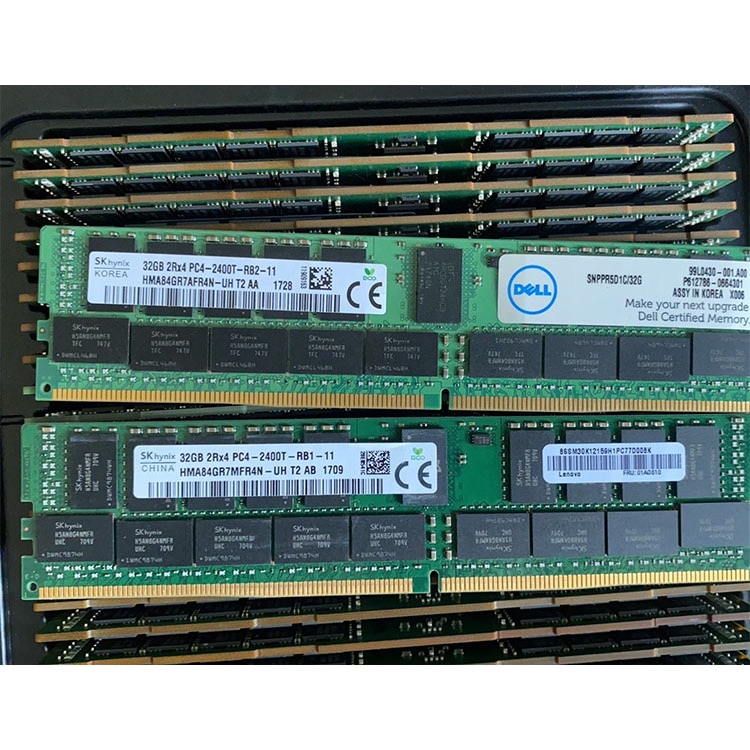
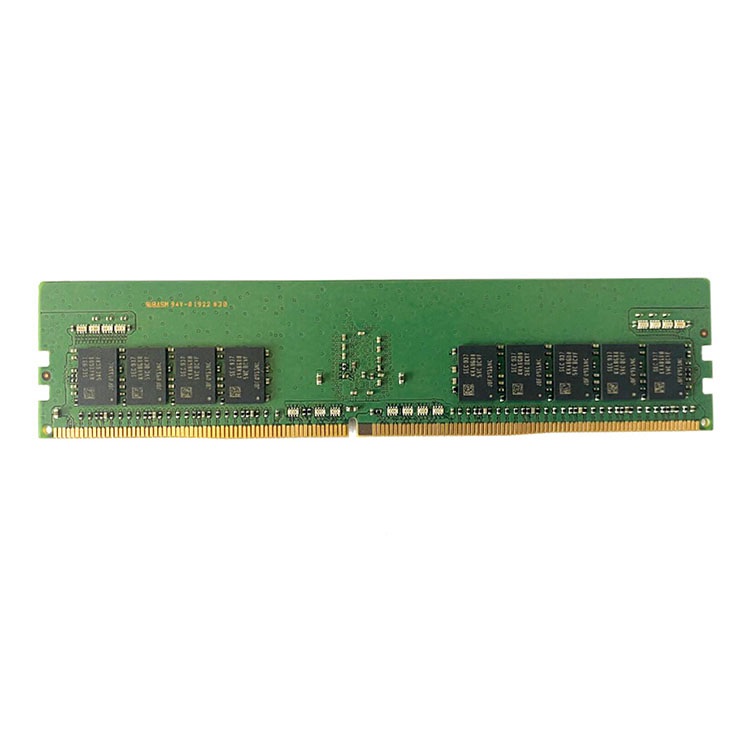
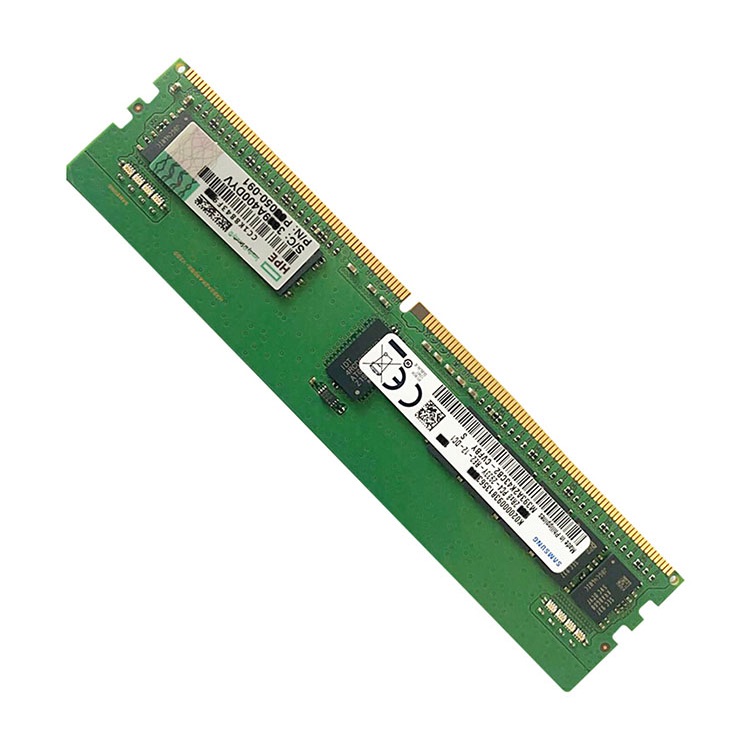
A server that refuses to detect memory is usually not “mysterious.” It is telling you something about slot population, firmware, CPU memory channels, DIMM type, rank, part-number confusion, or a bad module. Here is how I would investigate it before blaming the RAM.
When I hear “server memory not detected,” I do not picture a random gremlin inside the chassis; I picture a procurement sheet, a rushed rack install, a mismatched DIMM lot, or a BIOS that has not been updated since someone first said “AI workload” in a budget meeting. That sounds harsh, but anyone who has staged Dell PowerEdge, HPE ProLiant, Lenovo ThinkSystem, or Supermicro systems knows the pattern: the hardware is usually following rules the buyer never read. So why do teams still treat server RAM like desktop RAM with a fancier sticker?
Server memory not detected usually means the BIOS/UEFI or memory controller failed to train, enumerate, or approve one or more DIMMs during POST. The visible symptom may be RAM not detected in BIOS, DIMM not detected, server not recognizing all RAM, or an event log entry tied to ECC memory, memory initialization, or unsupported population.
And yes, a dead DIMM is possible. But in my experience, it is not the first suspect.
The first suspects are boring: wrong slot order, mixed RDIMM and LRDIMM, unsupported rank, uneven CPU-channel population, old BIOS, bent socket pins, unlabeled pulled stock, or a part number that looked compatible in a reseller title but was not compatible in the server. Dell’s own PowerEdge guidance says RDIMMs and LRDIMMs cannot be mixed and that CPU-side memory configuration should be identical in size and position, which is exactly the kind of rule buyers ignore until the machine refuses to boot.
If you are sourcing replacement modules rather than debugging one server on a bench, start with verified module families such as DDR4 server memory for Gen10/Gen11-era installed bases or DDR5 server memory for newer Xeon Scalable and AMD EPYC platforms. The generation matters. The module type matters more.
The Six Failure Modes I See Behind “DIMM Not Detected”
1. The DIMM Is in the Wrong Slot
This is the unglamorous one.
Server boards do not always let you populate memory like a child filling ice cube trays. A dual-socket server may require A1/B1 first, then paired channels, then ranked order. Some systems want the largest-capacity RDIMMs closest to the CPU. Some configurations require symmetry across CPU 1 and CPU 2. And if CPU 2 is missing, half the slots may be electrically useless.
That last one catches people. A lot.
A memory slot can look available while having no active memory controller behind it because the corresponding CPU is not installed or not seated correctly. In a dual-socket board, the DIMM slot belongs to the CPU memory controller, not to your optimism.
2. RDIMM, LRDIMM, 3DS RDIMM, and UDIMM Got Mixed
Here is the hard truth: “ECC” is not enough.
ECC memory not detected often happens because the buyer ordered “ECC server RAM” but ignored the module family. RDIMM and LRDIMM are not interchangeable in most enterprise servers. 3DS RDIMM has its own platform rules. UDIMM, even with ECC, may be for workstation-class systems rather than rack servers. A DDR4 ECC UDIMM and a DDR4 ECC RDIMM can both say ECC, both fit a 288-pin slot family in broad marketing language, and still be wrong for the machine.
I have seen buyers argue with a motherboard as if volume discounts rewrite electrical design. They do not.
Before you buy, compare the OEM part number and the DRAM manufacturer part number. ServerDimm’s guide on OEM part numbers vs DRAM manufacturer part numbers is worth reading because the sticker on the bag may be a procurement identity, not the full technical identity of the module.
3. BIOS, BMC, iDRAC, iLO, or UEFI Is Too Old
Firmware lies quietly.
A server may technically support a class of memory only after a BIOS or management-controller update. That is especially common around new-density DDR4 modules, 64GB/128GB DIMMs, DDR5-5600, DDR5-6400, and newer CPU stepping support. Dell’s troubleshooting guide for PowerEdge memory events puts firmware checks near the front of the process: CPLD, iDRAC, and BIOS updates come before reseating memory and reading fresh logs.
Do not skip the boring firmware work. It saves hours.
4. The CPU or Socket Is the Real Problem
A DIMM not detected in slot A6 may not mean A6 is bad. It may mean the memory channel tied to that CPU is compromised.
Bent LGA pins, uneven cooler pressure, thermal paste contamination, a damaged CPU memory controller, or an incompletely seated processor can make one bank disappear. On Intel Xeon Scalable and AMD EPYC platforms, the memory controller lives on the CPU package. The motherboard slot is only part of the path.
So test like an investigator, not like a gambler.
Move the suspect DIMM to a known-good slot. Move a known-good DIMM to the suspect slot. Test CPU-side channels one at a time. Record POST codes, SEL entries, iDRAC/iLO messages, and BIOS memory inventory after each change.
5. The Module Is Real, But the Part Number Is Wrong for the Platform
This one costs money.
A Samsung M393A8G40AB2-CWE, a Micron MTA36ASF8G72PZ-3G2, or an SK hynix HMAA8GR7AJR4N-XN may look close enough to another listing title, but “close enough” is not how server validation works. Rank, density, speed bin, voltage, load type, 2Rx4 vs 4Rx4, 1.2V vs platform expectation, and OEM qualification can all decide whether the BIOS trains the memory.
If your server is memory not recognized by server firmware after a mixed-lot upgrade, I would audit the label line by line before I touch the motherboard.
This is also where ServerDimm’s quality testing and warranty support page fits naturally: the useful part is not a vague promise of testing; it is the pre-shipment review of generation, module type, part number, capacity, preferred brand, and platform fit before a buyer turns a quote into a rack problem.
6. The DIMM Actually Failed
Bad modules exist. Do not romanticize them.
Google’s large-scale DRAM field study found that memory errors in production clusters were not rare laboratory curiosities: the data covered 2.5 years, multiple vendors, many millions of DIMM days, and more than 8% of DIMMs were affected by errors per year. The same study reported 25,000 to 70,000 errors per billion device-hours per Mbit, far higher than older assumptions.
That does not mean every undetected DIMM is dead. It means memory failure is real enough that serious teams test, log, isolate, and replace based on evidence.
What the Error Really Means: A Field Table
Symptom
Likely Cause
What I Check First
Fastest Practical Action
Server RAM not detected after upgrade
Unsupported DIMM type or mixed RDIMM/LRDIMM
Current module labels, OEM memory guide, CPU generation
Remove all new modules and boot with one known-good matched pair
RAM not detected in BIOS but server boots
Bad slot order, disabled channel, or partial training failure
BIOS memory inventory, SEL/iDRAC/iLO logs
Reseat DIMMs, update BIOS/BMC, repopulate by channel rules
Server not recognizing all RAM
CPU-side asymmetry or capacity mixing issue
A-side vs B-side population and total per CPU
Match DIMM count, size, and rank across CPU memory channels
ECC memory not detected
ECC module is not the supported server class
RDIMM vs LRDIMM vs ECC UDIMM
Confirm platform requires ECC RDIMM, LRDIMM, or 3DS RDIMM
DIMM detected alone but fails in mixed set
Revision, rank, or timing mismatch
Manufacturer part number and rank structure
Build from a matched lot or approved equivalent set
UEFI memory initialization error
Firmware or failing DIMM/channel
BIOS/iDRAC/iLO versions and event codes such as UEFI0103, MEM0802, MEM6104
Update firmware, clear logs, test one DIMM per CPU, then scale
How to Fix Server Memory Not Detected Without Wasting a Weekend
Step 1: Document the Existing Configuration
Do not pull anything yet.
Photograph the memory slots. Record the CPU count. Write down every module’s manufacturer part number, OEM part number, capacity, speed, rank, and module type. You want terms like DDR4-2933 RDIMM 2Rx4, DDR4-3200 LRDIMM 4Rx4, DDR5-4800 RDIMM 2Rx8, or DDR5-5600 2Rx4 in the notes, not “64GB Samsung stick.”
Messy notes create repeat failures.
If the server is part of a fleet, compare the working node against the failed node. Same BIOS? Same CPU SKU? Same memory mode? Same DIMM population? Same vendor revision? Small differences can become expensive outages.
Step 2: Boot With the Minimum Valid Memory Set
Strip the configuration down to the smallest approved memory set for that platform.
On many servers, that means one DIMM per CPU in the first required slot. Not one random slot. The first required slot. If the machine boots and sees the memory, the motherboard is probably not dead. Then add memory in the correct sequence until the failure reappears.
This is slow. It is also how adults troubleshoot hardware.
Step 3: Update Firmware Before Declaring Hardware Dead
Update BIOS/UEFI, BMC, iDRAC, iLO, CPLD if applicable, and chipset-related firmware. Then power drain the server. Remove AC power, wait, discharge, reseat memory, and boot again.
Why?
Because a stale BIOS can misread newer DIMM SPD data, fail memory training, or mishandle error reporting. Dell’s memory troubleshooting workflow explicitly calls for firmware checks, updates, power drain, reseating modules, clearing the system event log, rebooting, and reviewing fresh support logs.
Step 4: Separate Compatibility Failure From Physical Failure
A compatible DIMM that fails everywhere is probably bad. A DIMM that works alone but fails in a mixed configuration is probably part of a compatibility problem. A slot that fails with every DIMM may be a board, CPU, or socket-path issue. A bank tied to CPU 2 that disappears after maintenance may be a CPU seating problem.
This is where lazy diagnosis burns money.
Do not RMA six modules because one platform rule was violated. Do not blame the motherboard because someone mixed 64GB LRDIMMs with 32GB RDIMMs. Do not call a DIMM dead because it failed in an invalid population layout.
Step 5: Rebuild the Configuration Around the Server, Not the Bargain
The cheapest DIMM is not cheap if it strands a host.
In 2026, that point matters more because memory is no longer a sleepy commodity line item. Reuters reported on February 2, 2026 that TrendForce expected conventional DRAM contract prices to jump 90% to 95% quarter over quarter in Q1 2026, citing AI and data-center demand pressure.
That market pressure pushes buyers toward pulled stock, alternate brands, and mixed lots. I understand the temptation. But the fix is not blind buying; it is controlled buying. If you need to compare what capacities and module families are moving now, ServerDimm’s analysis of server memory capacities and types in demand gives useful context for DDR4 32GB/64GB installed-base demand and DDR5 64GB/96GB/128GB density planning.
My Diagnostic Checklist Before I Blame the DIMM
Check These in Order
Server model: Dell PowerEdge R740/R750/R760, HPE DL380 Gen10/Gen11, Lenovo ThinkSystem SR650/SR650 V3, Supermicro X11/X12/X13, etc.
CPU count: one CPU or two CPUs installed?
CPU model: does the CPU generation support the target speed and density?
Known-good swap: does the suspect DIMM fail in a known-good slot?
Lot identity: are the modules actually the same technical part, or only similar in listing title?
That list looks long. Good.
A professional memory failure investigation should be boring enough to repeat and strict enough to catch a procurement mistake before it becomes a production outage.
The Buying Lesson Nobody Wants to Hear
The server did not “randomly hate” your new RAM.
It rejected a condition.
Maybe the condition was electrical. Maybe it was firmware. Maybe it was a population rule. Maybe it was a marginal DIMM that finally failed under training. Maybe it was a fake match created by sloppy part-number translation.
This is why I prefer sourcing around platform fit instead of chasing isolated module prices. If you need DDR4 for an installed fleet, go through a DDR4 server memory category with a known target configuration. If you are planning new density around DDR5, start with DDR5 server memory and confirm CPU generation, speed support, and memory mode before issuing the PO.
And if the issue is urgent, do not send a vague message saying “need RAM.” Send the server brand, model, CPU count, current DIMM labels, target capacity, module type, preferred brands, quantity, and shipping destination through a server memory compatibility review and quote request. A clean request gets a clean answer.
FAQs
Why is my server memory not detected?
Server memory is not detected when the motherboard, BIOS/UEFI, memory controller, or firmware rejects one or more DIMMs because the module is seated poorly, installed in the wrong slot order, electrically incompatible, unsupported by CPU generation, mixed with a forbidden DIMM type, or failing during memory training. After that, the fix is methodical: confirm supported memory rules, update firmware, reseat modules, boot with a minimum valid set, and isolate each DIMM and slot.
Why is RAM not detected in BIOS?
RAM is not detected in BIOS when the server fails to enumerate the DIMM during POST, usually because of bad seating, invalid population order, unsupported RDIMM/LRDIMM mixing, stale BIOS firmware, CPU memory-channel failure, damaged socket pins, or a DIMM that cannot pass early training. The BIOS screen is only the symptom. The real evidence is usually in UEFI event logs, iDRAC/iLO/XClarity logs, and repeatable slot testing.
Can ECC memory be installed but not detected?
ECC memory can be installed but not detected when the module has ECC capability but is not the exact memory class the server requires, such as using ECC UDIMM where the platform expects ECC RDIMM, mixing RDIMM with LRDIMM, or using unsupported rank and density combinations. “ECC” describes error correction, not full platform compatibility. Always verify DDR generation, module type, rank, speed, and OEM support.
How do I fix server memory not detected?
To fix server memory not detected, shut down the system, confirm the official memory population rules, update BIOS and management firmware, reseat the DIMMs, boot with the minimum supported configuration, test each module in a known-good slot, and rebuild the memory layout in validated channel order. Do not start by buying replacements. Start by proving whether the fault follows the DIMM, the slot, the CPU channel, or the configuration.
Is server not recognizing all RAM always a bad DIMM?
A server not recognizing all RAM is not always a bad DIMM; it is often a population, firmware, CPU-channel, rank, or compatibility issue that prevents only part of the installed memory from being trained and mapped into usable system memory. Bad DIMMs are real, but partial capacity loss often points to invalid slot order, asymmetric CPU population, unsupported capacity mixing, or disabled channels after an error event.
Final Thoughts: Treat Memory Detection Like an Audit, Not a Guess
If your server memory is not detected, do not panic-buy DIMMs and do not trust a listing title. Pull the logs. Photograph the slots. Read the platform rules. Match RDIMM, LRDIMM, rank, capacity, speed, and CPU-side symmetry. Then test one variable at a time.
For procurement teams, the next move is simple: send the server model, current memory labels, target capacity, preferred brand, quantity, and timeline to ServerDimm’s compatibility and quote team before ordering. A five-minute specification review is cheaper than a weekend of DIMM swapping in a noisy rack.
ServerDimm supplies new and used branded server memory for distributors, OEM buyers, resellers, and data center teams. We support DDR4 and DDR5 sourcing with tested inventory, compatibility checks, and responsive quote service.